Ascend Set Up
Last updated: May 1, 2026
What You'll Learn
The required steps to start using Ascend
How to set up your bank details
How to add your team members to Ascend
What is take rate and how to set it up
These steps can only be taken by users with Admin permissions
Create your Ascend account
If you've found this page and you don't already have an Ascend account - welcome! We're excited you're interested in getting started with Ascend. To get the process started, click here.
Set up bank details
Once your Ascend account has been created, you'll need to add your agency's business and banking details. Because Ascend funds your organization for policy and invoice related payments, we require both the Operational and Trust Accounts during set up.
Step-by-Step Instructions
Please note this page may only be accessed by your Ascend dashboard Admins.
Under the Bank details section, enter the information about both the Operational and Trust accounts.
If you are updating an existing bank account, please click the Edit button
To know which bank account to enter in each, please see the differentiation below:
Operational: The account you use to manage your agency’s operational expenses. For financed policies, Ascend will send your commission to this account
Trust account: The account you use to hold funds on behalf of other parties (e.g. carriers, wholesalers, MGAs, etc). For paid in full policies, Ascend will transfer all funds (premium and commission) to this account
Click Save Changes
Organizations can add multiple trust accounts in Ascend. This feature is not enabled by default — to have it activated, please contact Ascend support at support@useascend.com.
Add team members to Ascend
To give your team access to the Ascend Dashboard, you'll need the following information:
Unique work email (multiple users cannot have the same email address)
First & last name
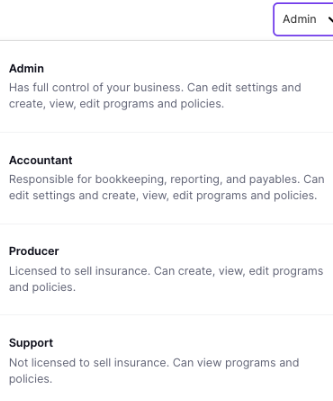
Role type
Phone number (optional)
Step-by -Step Instructions
Admin users are the only role type who have access to this Settings page
Locate the User Management page within the settings menu of the Ascend Dashboard
To. create a new user, select Add new from the top right corner of the page
Enter their details, including role type:
Click Save
Take Rate
Take rate only applies to financed policies.
Take rate is an additional percentage added on the the base interest rate applied to your insured's finance agreement that generates additional revenue for your organization. This allows your organization to participate in the benefits of the finance agreement.
Take rate is paid out on the 15th of each month for all finance agreements initiated since the 15th of the previous month.
By adding a take rate, your organization will earn additional revenue when an insured chooses to finance their programs.
Your partner retail agencies will not see a breakdown of any take rate added by your team. Your adjustments will be included directly into the APR.
How do I add a Take Rate?
Admins & Accountants in your organization's workspace have the ability to add a take rate on top of the base rate used to calculate your insured's APR for financed policies.
This feature can be enabled via the Settings > Take Rate page here:
https://dashboard.useascend.com/settings/take-rate
Step-by-Step Instructions
Locate the Take Rate section of the Settings section here
Enter the desired Take Rate
Click Save Changes at the bottom of the page to save
Please note take rates are not allowed in the following states:
AL, AZ, CT, DC, KY, MD, MA, MI, NV, NM, NC, SC, TX, VA, WA, WI
Take Rate is only allowed for commercial coverage in the following states:
MA, TX
For more information on take rate, click here.
Contact Us
Need more help? Contact us at support@useascend.com for more help.