Ascend Posting Warning and Failures (Epic)
Last updated: May 6, 2026
This guide is designed for Ascend customers who use Epic as their agency management system. It covers the most common posting warnings and failures you may encounter when posting transactions from Ascend to Epic.
For each scenario, the guide explains what Ascend is validating, why the issue occurs, and how to resolve it so posting can proceed successfully. Use this as a day-to-day reference for troubleshooting and to ensure your policies are configured in a way that aligns with both Epic and Ascend requirements.
1. Payer Is Not Set Up as a Billing Company
What Ascend Is Checking
Ascend verifies that the payer associated with the policy is configured as a Billing Company in Epic.
Why This Happens
The policy is associated with a payer that:
Is not the correct payer for the policy, or
Exists in Epic but is not marked as a Billing Company.
How to Resolve in Epic
Confirm the policy is linked to the correct payer.
If the payer is correct, open the payer record in Epic and set Billing Company = TRUE.
2. Invoice To = Broker, but No BREC Commission Exists
What Ascend Is Checking
Ascend validates that broker-billed policies include the required BREC commission.
Why This Happens
On the policy Billing tab, Send Invoice To is set to Broker, but the policy includes only BPAY or PPAY commissions.
Broker-billed policies require a BREC commission in order to post successfully.
How to Resolve in Epic
Update the policy billing configuration by changing Send Invoice To from Broker to Client.
3. Invoice To = Client, Only BPAY or PPAY Are Allowed
What Ascend Is Checking
Ascend verifies that client-billed policies use supported commission types.
Why This Happens
On the policy Billing tab, Send Invoice To is set to Client, but the policy includes a BREC commission or another unsupported commission type.
Client-billed policies require BPAY or PPAY commissions.
How to Resolve in Epic
Remove the BREC commission from the policy.
Add a BPAY or PPAY commission, as appropriate.
4. BREC Exists Where Not Allowed
What Ascend Is Checking
Ascend can be configured to flag policies that include BREC commissions.
Why This Happens
Your organization has chosen to restrict the use of BREC commissions, even though Epic may technically allow them.
How to Resolve in Epic
Remove all BREC commissions from the policy.
5. Producer/Broker Commission Does Not Total 100%
What Ascend Is Checking
Ascend validates that the total Producer/Broker (PR/BR) commission split equals 100%.
Why This Happens
The combined commission percentages across all producers and brokers on the policy do not add up to 100%.
How to Resolve in Epic
Review the Producer/Broker commission records on the policy.
Update the commission percentages so the total equals 100%.
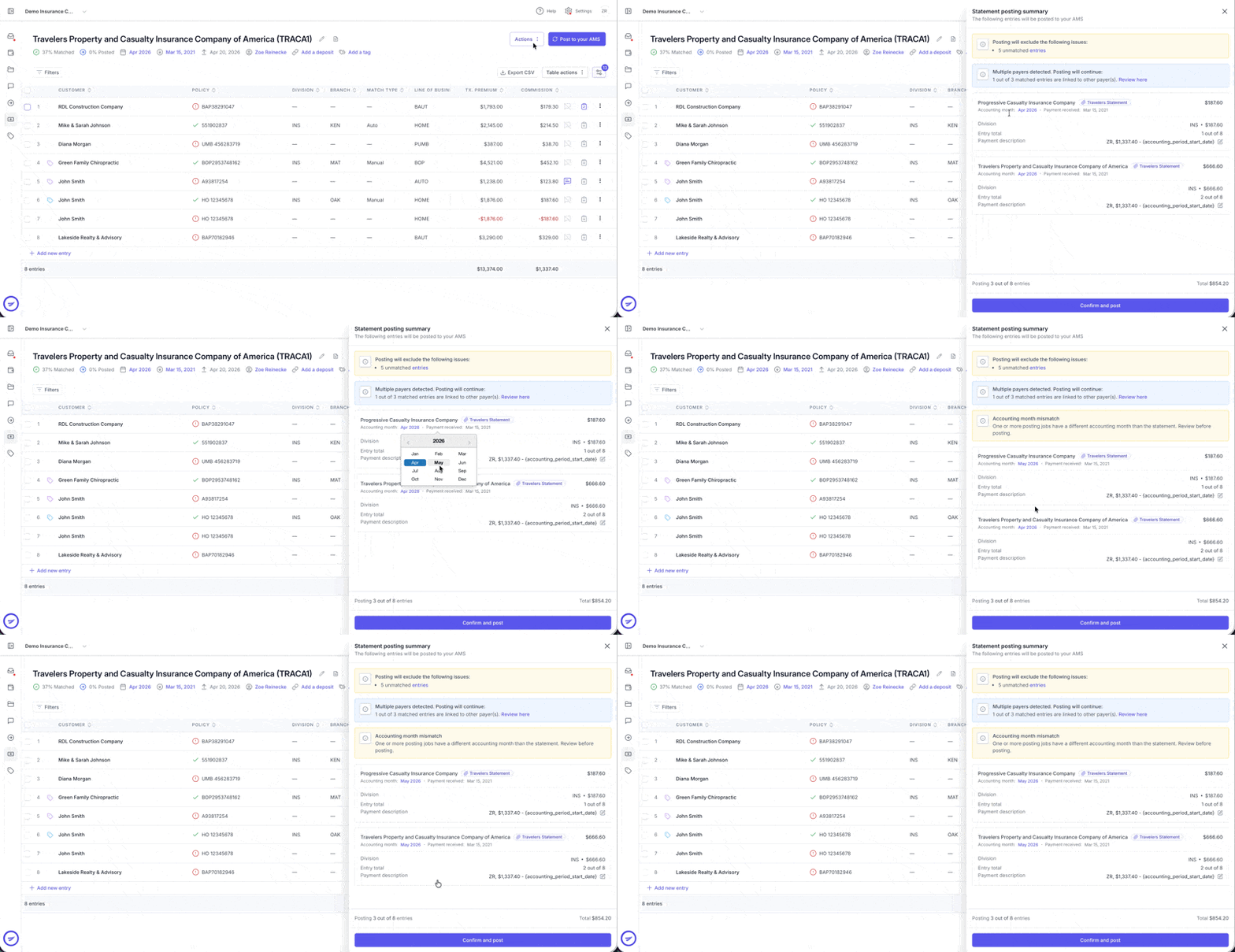
6. Accounting Month Is Closed
What Ascend Is Checking
Ascend attempts to post transactions to the accounting period associated with the transaction.
Why This Happens
If the accounting period in Epic is closed, Ascend cannot post transactions to that period.
How to Resolve
When posting from Ascend, update the accounting period to an open period before reposting.
7. PR/BR Code Is BPAY, but Commission Type Is a Number
What Ascend Is Checking
Ascend validates that PR/BR codes and commission types align with your Epic configuration.
Why This Happens
The PR/BR code is set to BPAY, but the commission type is set to a numeric value (for example, #).
This validation is configurable in Ascend and depends on how your Epic environment is set up.
How to Resolve in Epic
Update the commission type on the PR/BR record to match the required configuration for BPAY.
8. Invalid Share Revenue Code
What Ascend Is Checking
Ascend verifies that share revenue codes are valid for the associated producer.
Why This Happens
The share revenue code on the PR/BR record is not a primary agency code for the associated producer.
How to Resolve in Epic
Update the share revenue code to a valid primary agency code for that producer.
9. Missing Associated Contract on the PR/BR
What Ascend Is Checking
Ascend confirms that required contracts are associated with PR/BR records.
Why This Happens
The PR/BR record does not have an associated contract.
This validation is configurable in Ascend and depends on your Epic setup.
How to Resolve in Epic
Associate a valid contract with the PR/BR record and repost.
Contact Us
Need more help? Contact us at support@useascend.com for more help.