Automatic Payments (Autopay)
Last updated: June 16, 2026
This is a guide that will teach you:
Automatic Payments at time of purchase
Modify Autopay settings for a customer
Payment Reminders
Default Settings for Organization
Automatic Payments at time of purchase
Initial Purchase
When making payment on a premium finance agreement or installment plan, your insured will be prompted to enroll in Autopay for Credit Card or ACH transactions.
Autopay is enabled by default when the client reaches the payment page. The client may opt out of automatic payments if preferred.
Ongoing Installments
If the customer is not opted into automatic payments, they will receive six emails from Ascend to complete upcoming installment payments via email starting 20 days before the payment due date.
Autopay will not be enabled by default if the client has previously opted out. The customer is able to enroll in autopay from any of these installment invoices.
Modify Autopay settings or update Autopay payment method
Update Autopay settings / update payment method from the Agent Dashboard
Go to the customer's program page
In the Actions menu, select Manage Autopay
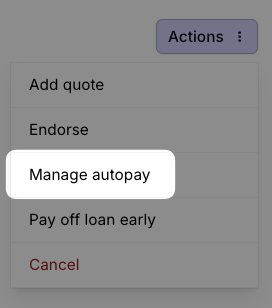
From here, you can turn Autopay OFF, or update your insured's Autopay payment method. Note that you cannot turn Autopay ON if it is OFF. For compliance reasons, this must be done by your insured.
Update Autopay settings / update payment method from the Insured Portal
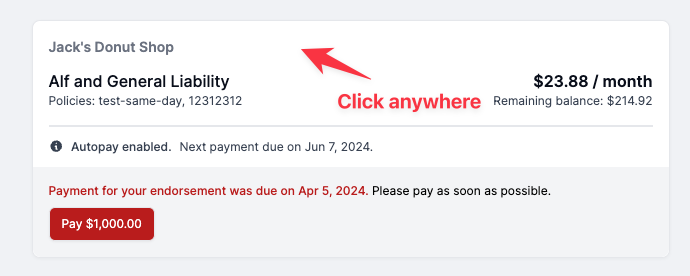
The client will login to their portal using the email on file for the account
The client will select the account they would like to disable autopay
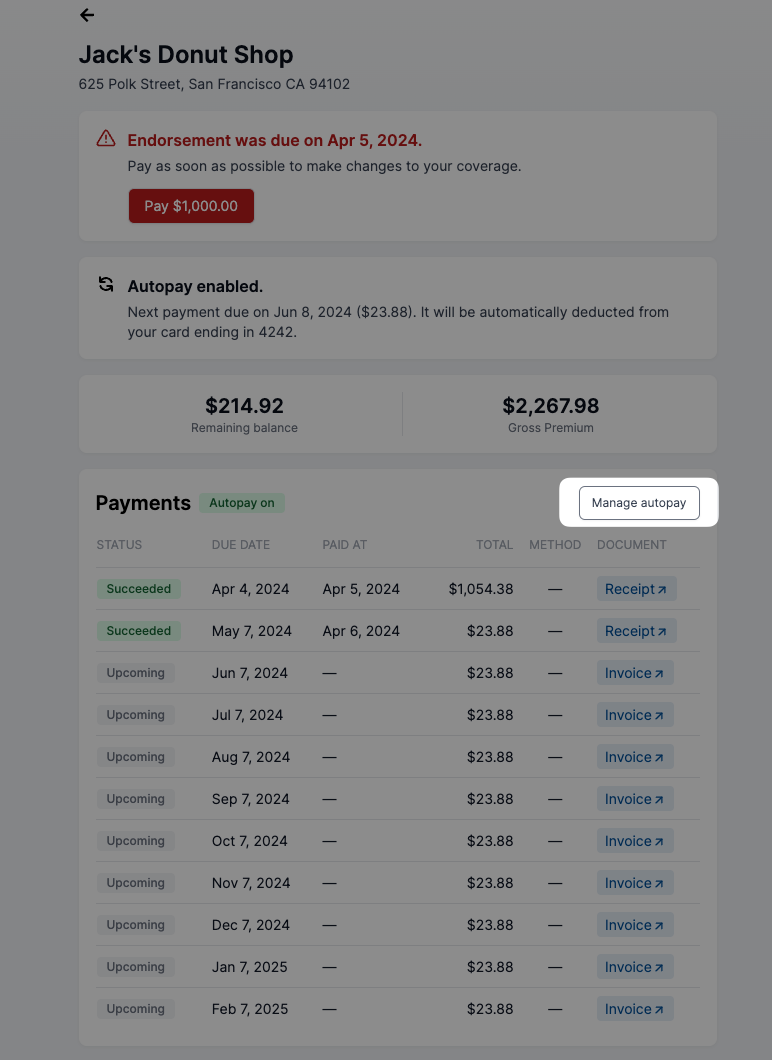
The client will turn autopay off under the Payments section by clicking the Manage autopay button
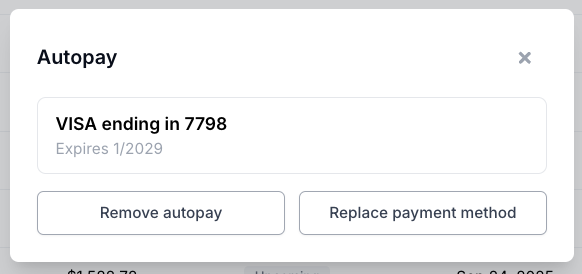
Insured can either remove autopay or update their payment method:
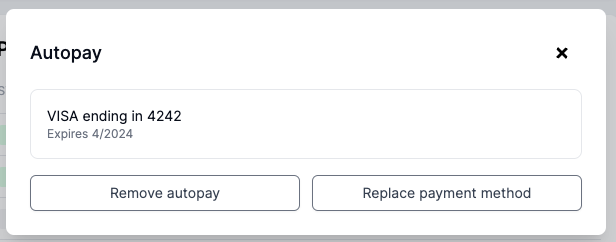
Once the insured turns off autopay, they will have to manually toggle autopay off when they pay each checkout link otherwise autopay will be turned on again.
Payment Reminders
Autopay On - 1 reminder sent 3 days before payment method is charged
Autopay Off - 6 reminders sent 20, 7, 4, 3, 2, 1 day before payment method is charged
Learn more about emails sent to insureds from Ascend here.
Frequently Asked Questions
The policy has been canceled, how do I disable autopay
Once a policy has been canceled, you should also cancel it in Ascend by clicking Actions > Cancel and completing the cancelation workflow. If you don't know the amount of return premium or unearned commission due yet, you can leave them as zero and update them in the future. More info on cancelation can be found here.
When a loan is canceled for non‑payment, Ascend automatically sends the Notice of Cancellation to the carrier and wholesaler on file. The carrier will then process the cancellation and calculate the return premium. Any return premiums will be applied to the loan balance first before being refunded.
If financed, canceling the policy in Ascend will automatically disable autopay, pause email reminders, and disable future payment links.
My downpayment/monthly installment payment is processing, how do I disable autopay?
When an insured pays via ACH and their payment is Processing to Ascend, they will not be able to update their Autopay settings through the Customer Portal. Please wait for the payment to finish processing before attempting to update Autopay settings.
Can I change the due date of the monthly installment?
No, we cannot change the due date of a monthly installment. The due date of the monthly installment is based on the effective day of the month of the underlying policy. If multiple policies are attached to a program, the due date will be the earliest effective day of the month.
Contact Us
Need more help? Contact us at support@useascend.com for more help.