Email MFA Statement Fetching
Last updated: June 4, 2026
This guide covers:
Adding MFA logins to the Ascend dashboard
Setting up autoforwarding rules in your email service
Overview
Ascend streamlines statement retrieval by automatically fetching digital statements. This guide will teach you how to add carrier logins that require email based Multi Factor Authentication (MFA) to login to the carrier portal.
Add a New Login
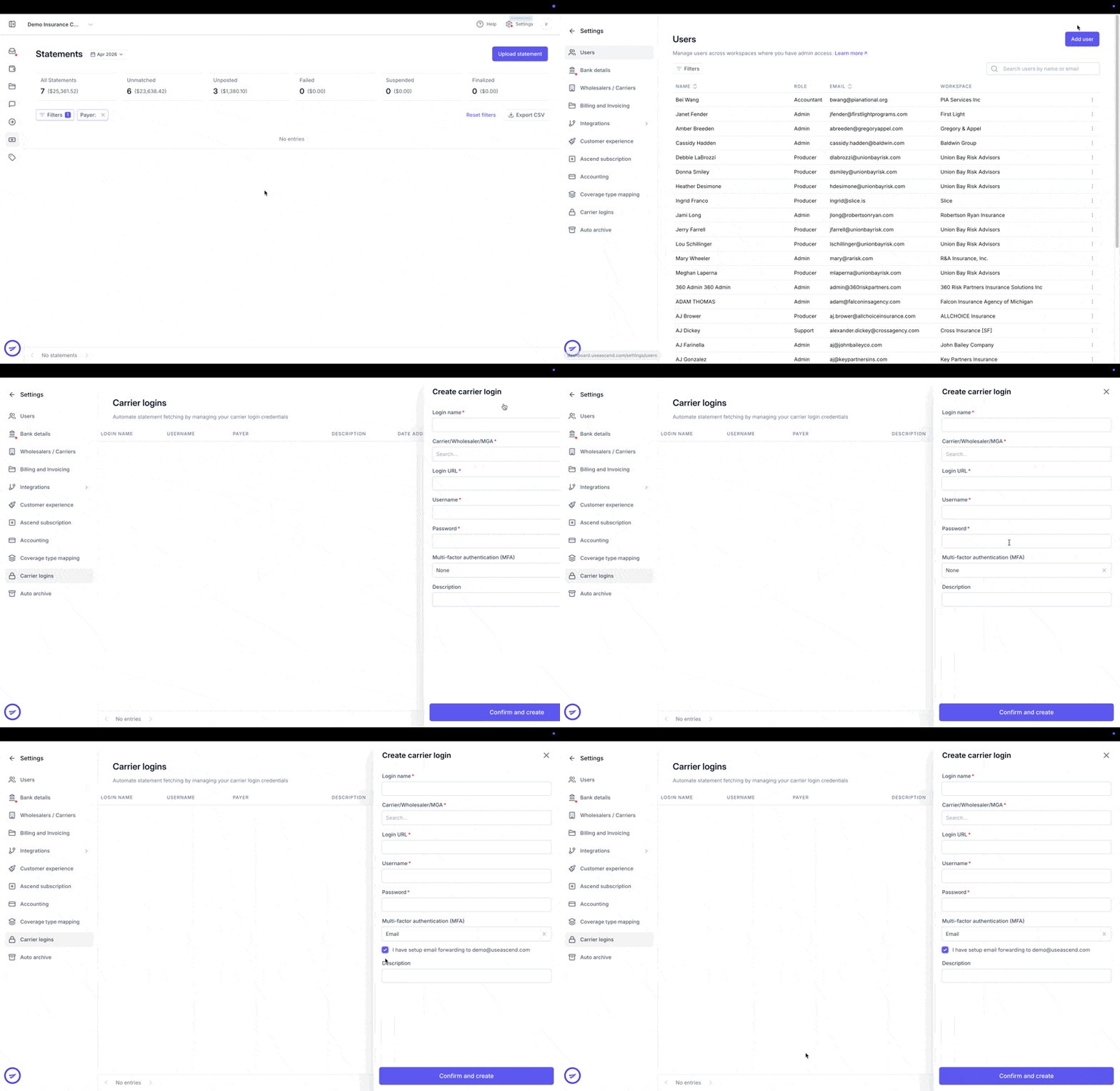
Navigate to Settings in the top right of your screen.
Click on Carrier logins in the left panel. Here you will view the carrier logins that you have already created.
Click Add new login in the top right corner of the screen.
Complete the required information (marked *).
Under Multi-factor authentication (MFA), select Email from the dropdown.
Crucially, set up email forwarding to the Ascend address shown in your Ascend Inbox, then check the I have setup email forwarding to agency_name@useascend.com confirmation box. The Confirm and create button will remain disabled until this box is checked.
Click Confirm and create.
Auto-Forwarding Emails from Outlook
Click the Settings gear in the top right, then go to Mail > Rules.
Click Add new rule and enter a name (e.g. "Forward to Ascend").
Add a condition: choose Narrow by sender/subject to only forward MFA codes.
Add an action: choose Forward to, then enter the Ascend email address shown in the Ascend Inbox.
Click Save.
Please refer to this Microsoft Support article for further guidance
Auto-Forwarding Emails from Gmail
In Gmail, go to Settings > See all settings > Forwarding and POP/IMAP tab, click Add a forwarding address, and enter the Ascend address available in the Ascend Inbox.
Go to Settings > Filters and Blocked Addresses > Create a new filter, enter the carrier's sender address in the From field (use
ORto add multiple), and click Create filter.Check Forward it to, select the Ascend address, and optionally check Also apply filter to matching conversations to forward existing emails.
Click Create filter to save. Note: Gmail won't forward messages that land in Spam, so mark the carrier as not spam if MFA codes go missing.
Please refer to this Google Support article for further guidance
Frequently Asked Questions
1. How will I know if a carrier login I have entered is successfully set up to retrieve statements?
The Ascend team will reach out to you in case any of the logins are invalid.
2. After I login, I pull statements from multiple agency codes. Does Ascend support this workflow?
Yes. When creating the login in Ascend, please specify which agency codes you would like us to pull statements from in the Description section.
Contact Us
Need more help? Contact your designated Customer Success Manager for more help.