Resolving Discrepancies
Last updated: July 4, 2026
This is a guide that will teach you common workflows + troubleshooting steps for resolving discrepancies.
Add tags
Communications Tab | Matching Drawer
Create an Epic Activity
Send an Email
Close an Email
Notes Tab | Matching Drawer
Communications Dashboard
Access the Dashboard
Close Epic Activities
Add Tags
Tags help indicate particular issues preventing reconciliation. To add a tag:
Click on the entry row to open the Matching Drawer.
Click Add tags at the top of the drawer.
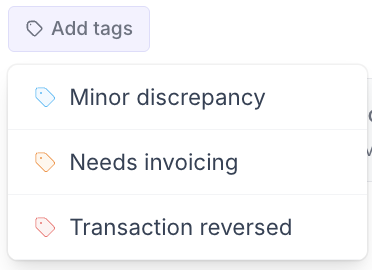
Select the corresponding tag(s).
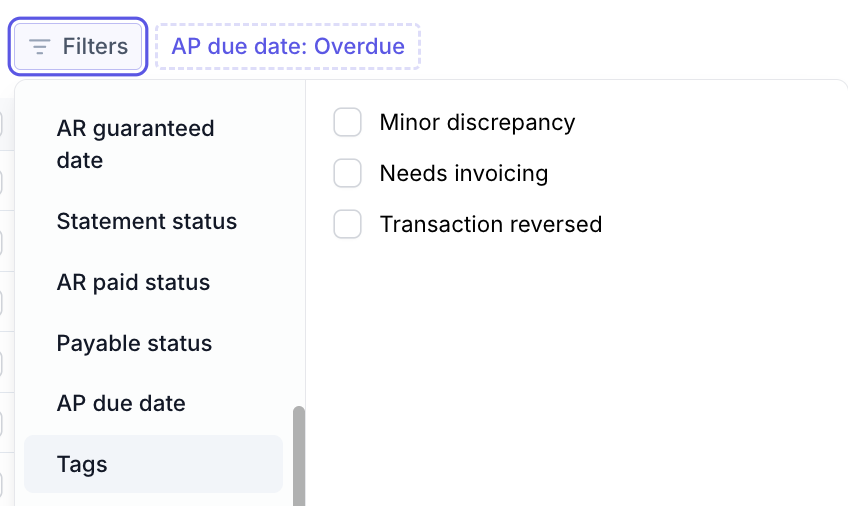
Tags will appear on the entry in the document detail table.

And a Filters option in Entries View.
Communications Tab
Create an Epic Activity
Use Epic Activities to connect with your teams to resolve items preventing reconciliation.
Click on the entry row to open the Matching Drawer.

Navigate to the Communications subtab.
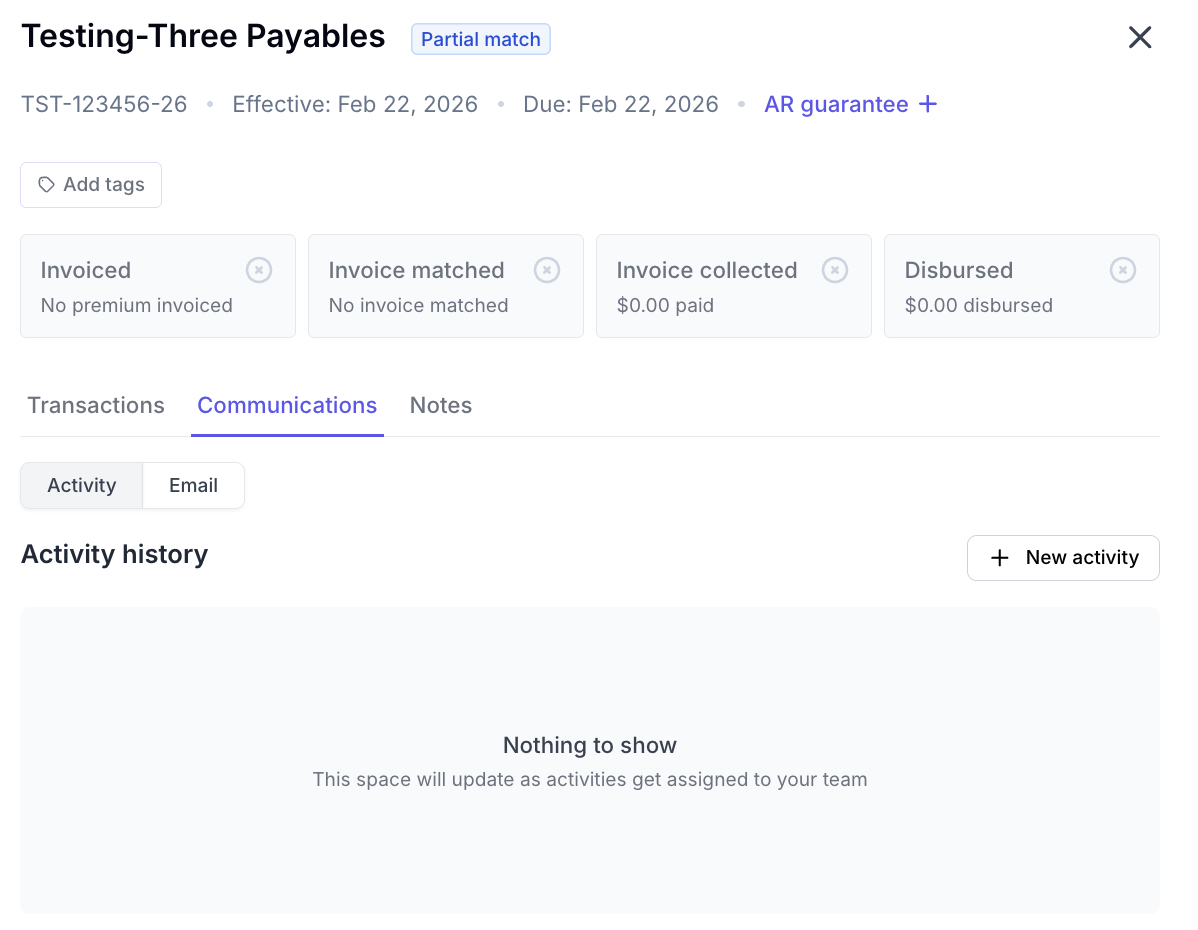
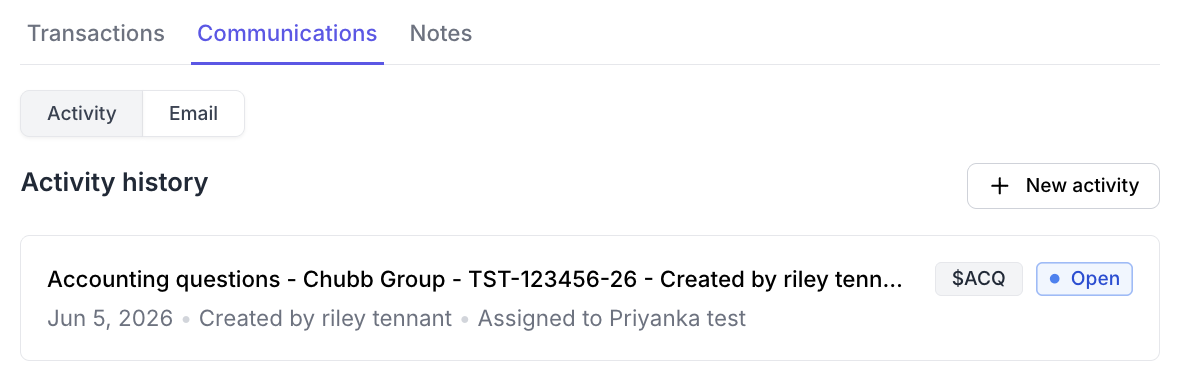
Verify the communications toggle is set to Activity, click + New Activity.
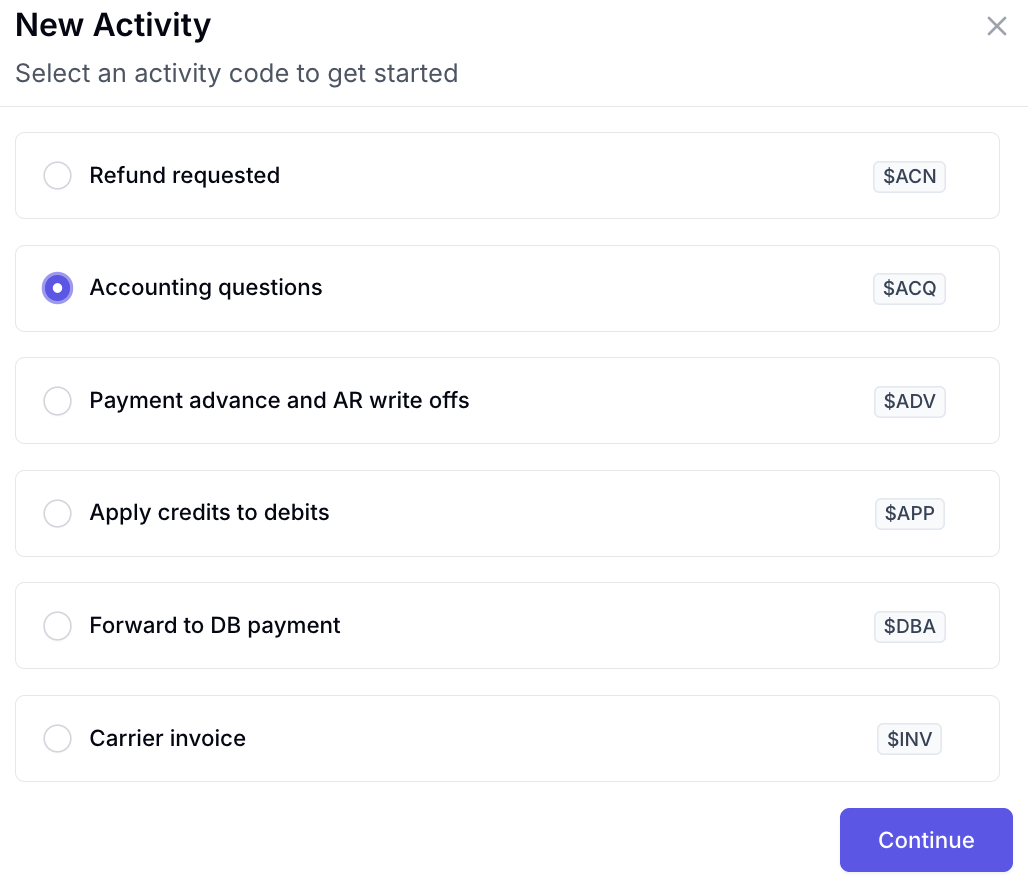
Select the appropriate activity code and click Continue.
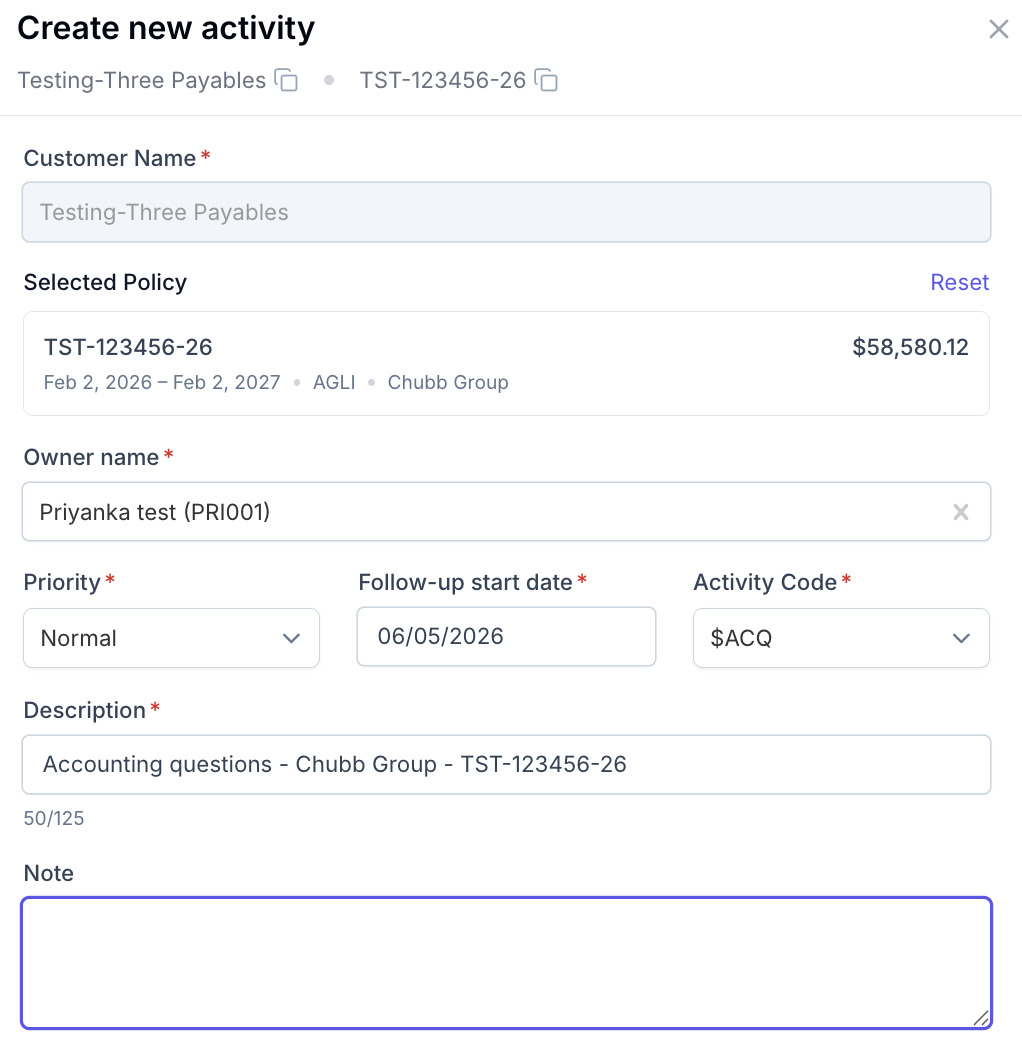
Fill out the required information (*).
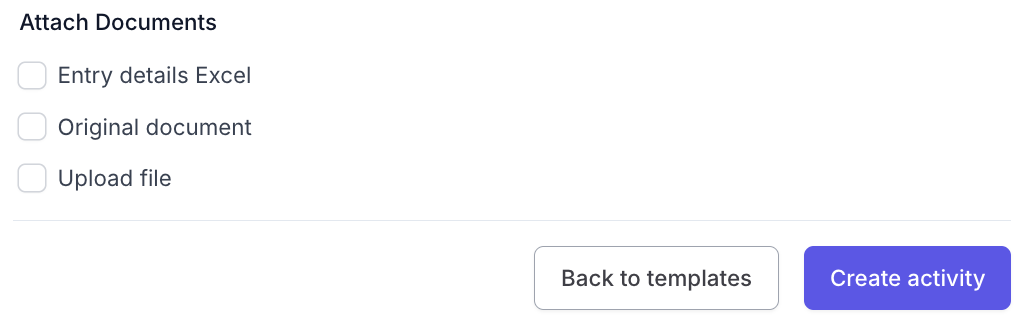
Choose whether to attach the entry details or an additional file.
Click Create activity.
You will see a timeline of the activity status in the Communications subtab.
Send an Email
Click on the entry row to open the Matching Drawer.
Navigate to the Communications subtab.
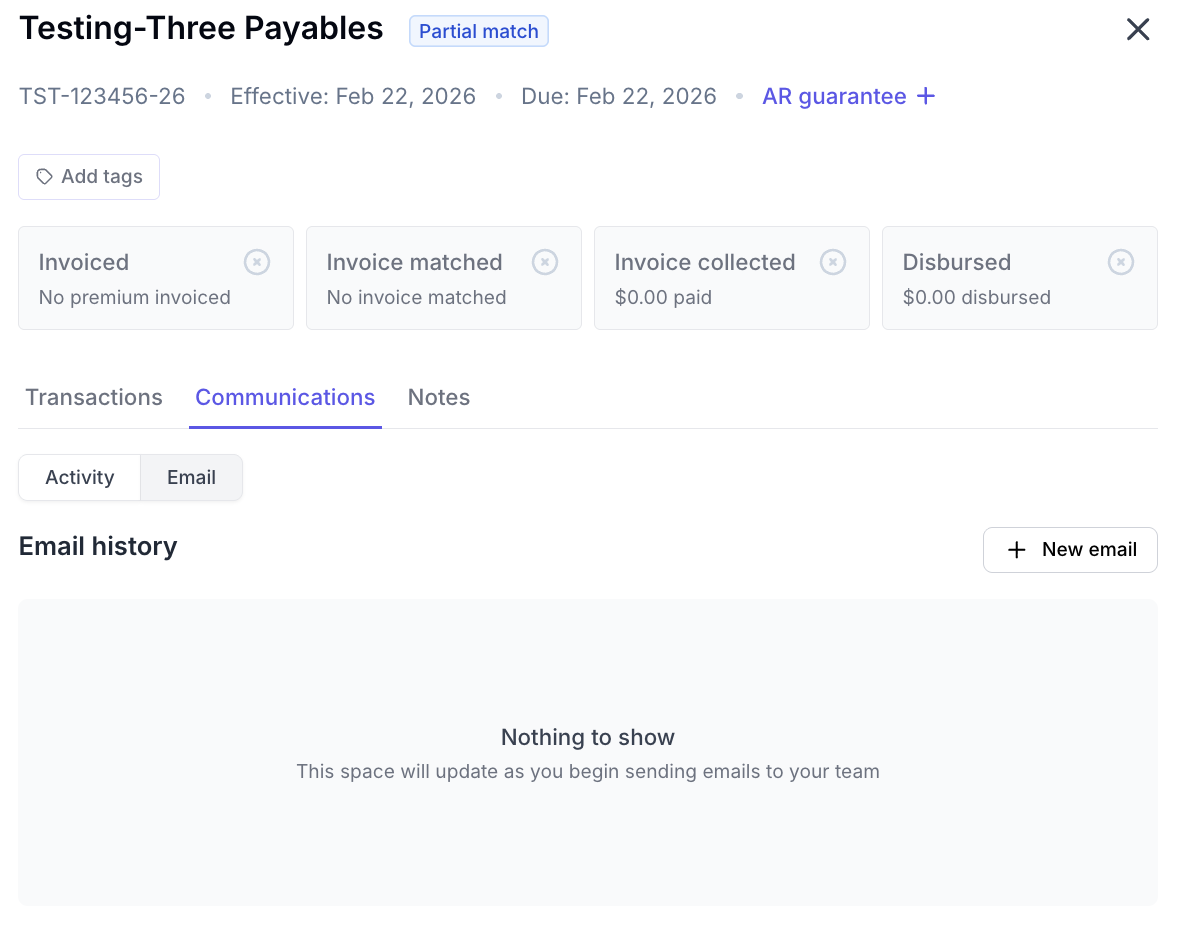
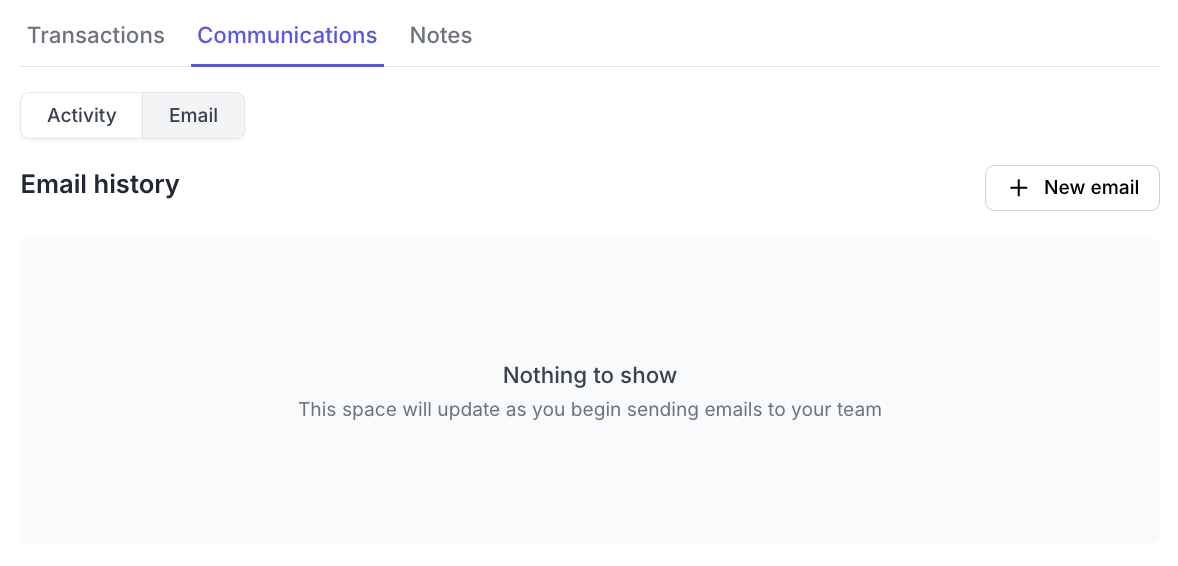
Verify the communications toggle is set to Email, click + New Email.
Fill out the required details (*).
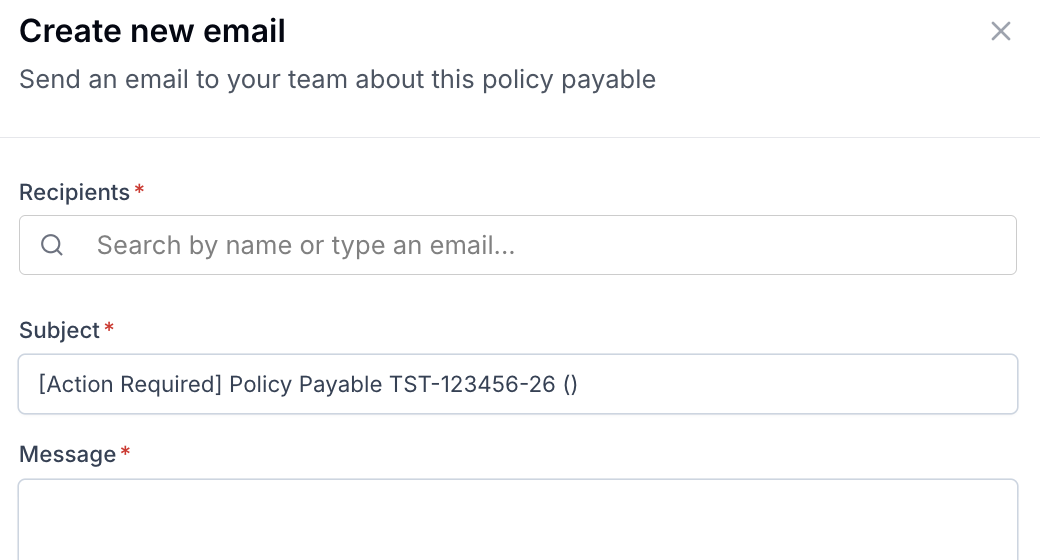
Click Send email.
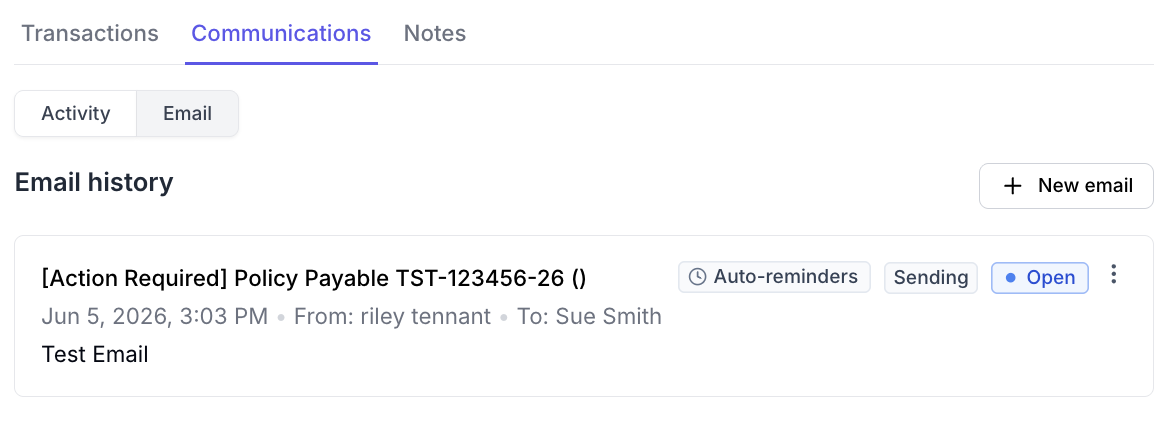
The email status will appear in the Communications subtab timeline. Email communications will not close.
Close an Email
Locate the open email in the Communications tab.
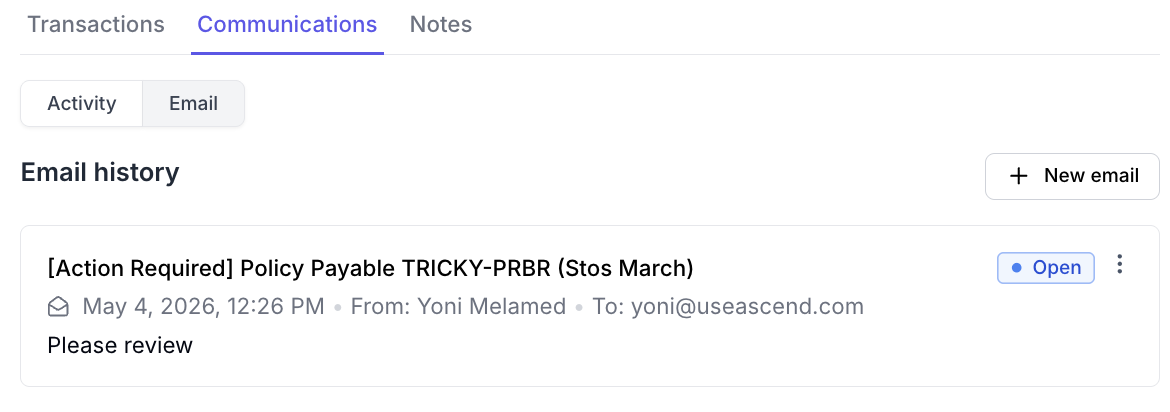
Click the three vertical dots and select Mark as closed.

Select Mark as closed in the pop-up.
Notes Tab
Create an Internal Note
Click on the entry row to open the Matching Drawer.
Navigate to the Notes subtab
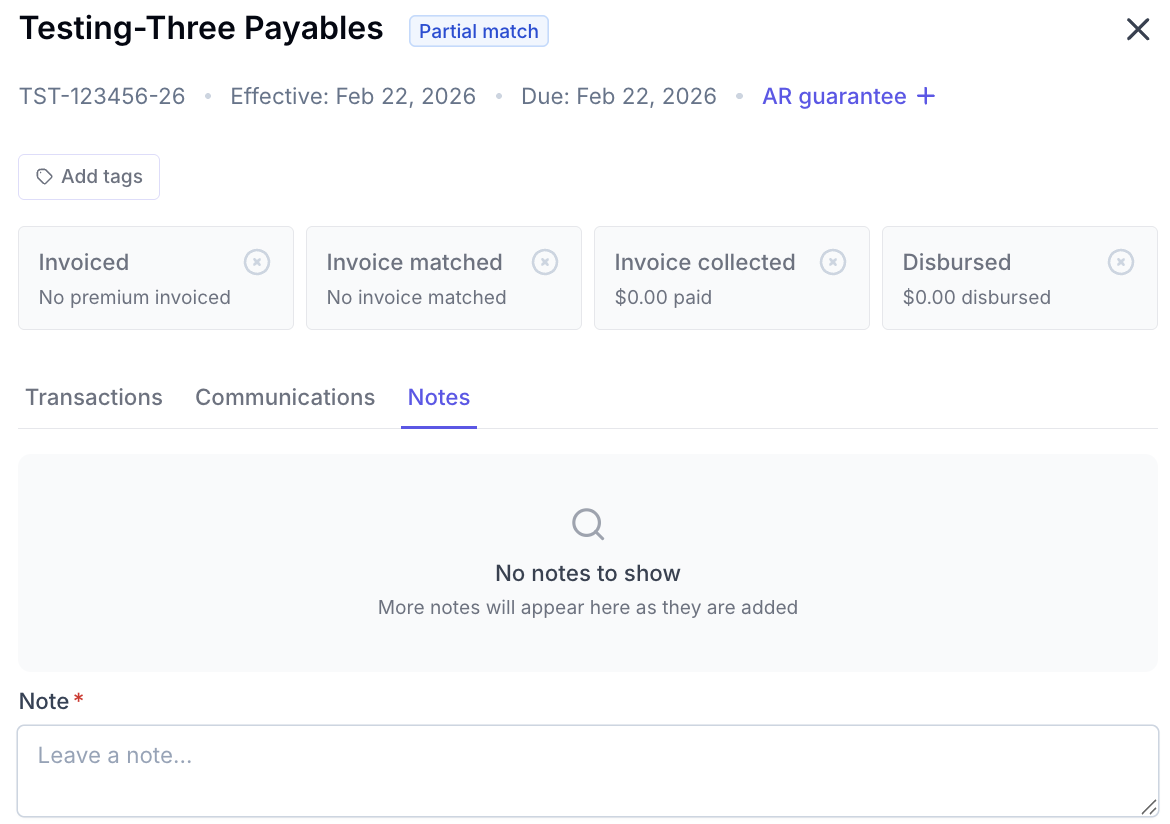
Write your message and click Send.
Communications Dashboard
The Communications Dashboard aggregates all Epic Activities and Emails created in Ascend, allowing you to track items and their status.
To access, click Communications in the left menu.

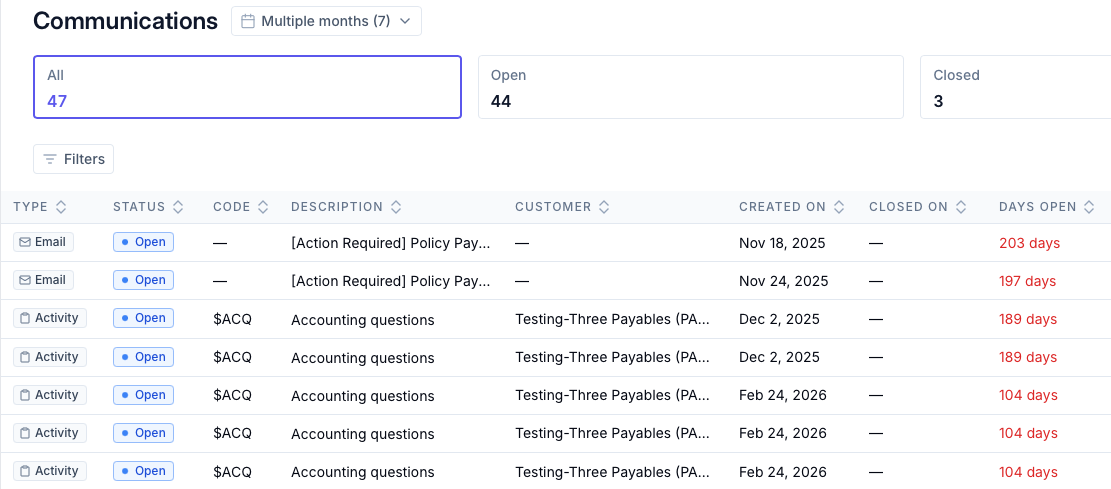
Using the Communications Dashboard
Navigate to the Communications Dashboard from the left menu.
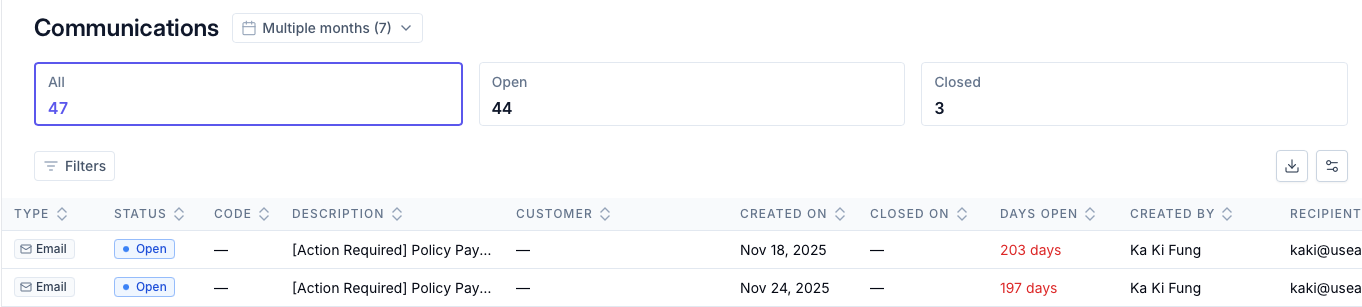
Use filters to view specific items.
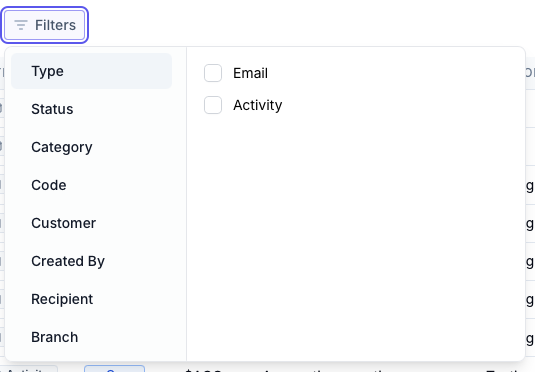
Click on a row to jump into the Communications tab of the matching drawer for that policy.
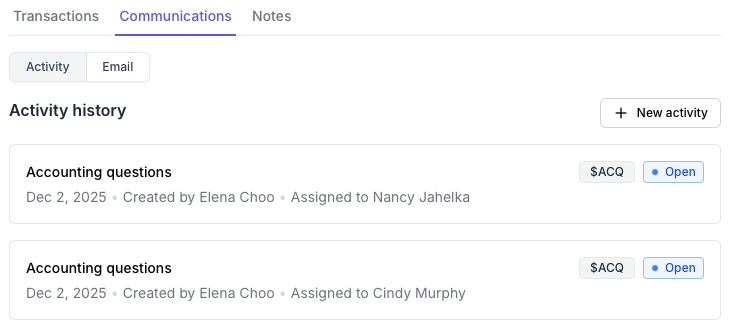
Close Epic Activities
Click on the entry with the Open Activity.

Select the Activity to close.
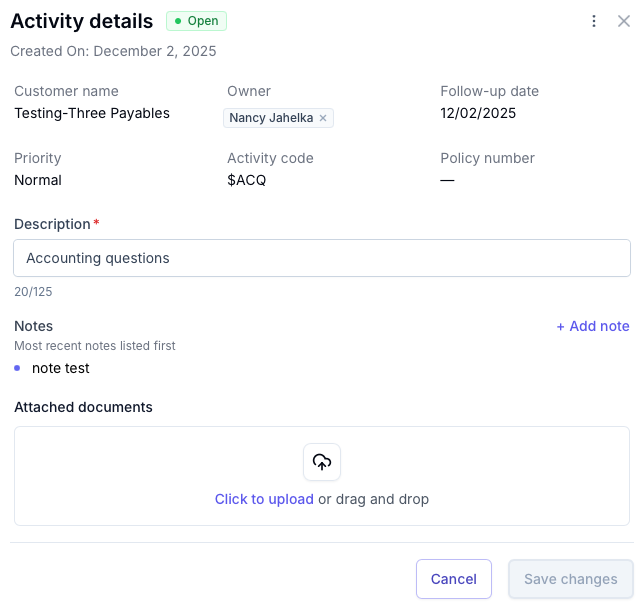
Click the 3 vertical dots and click Mark as Closed.
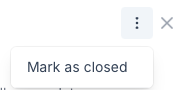
Click Close activity.
Contact Us
Need more help? Contact us at support@useascend.com for more help.