Combining Entries
Last updated: July 4, 2026
This is a guide that will teach you how to Combine Payable Entries.
Use the steps below to combine two or more separate entries into a single entry. This is useful when you need to match how a policy is billed in your AMS.
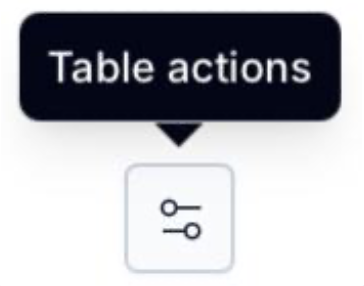
From your document details page, select the two horizontal lines icon at the top-right of the details table.
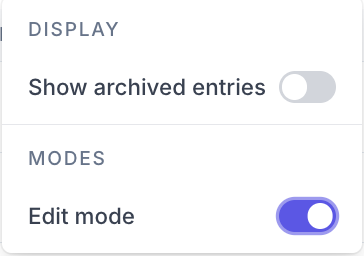
Toggle on Edit Mode.
Select the checkboxes next to the entries you want to combine.

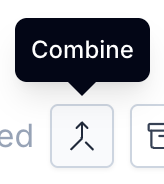
Select Combine at the top right of the table.
Complete all required fields (*) and validate information is correct. If you need to update the policy, click change.
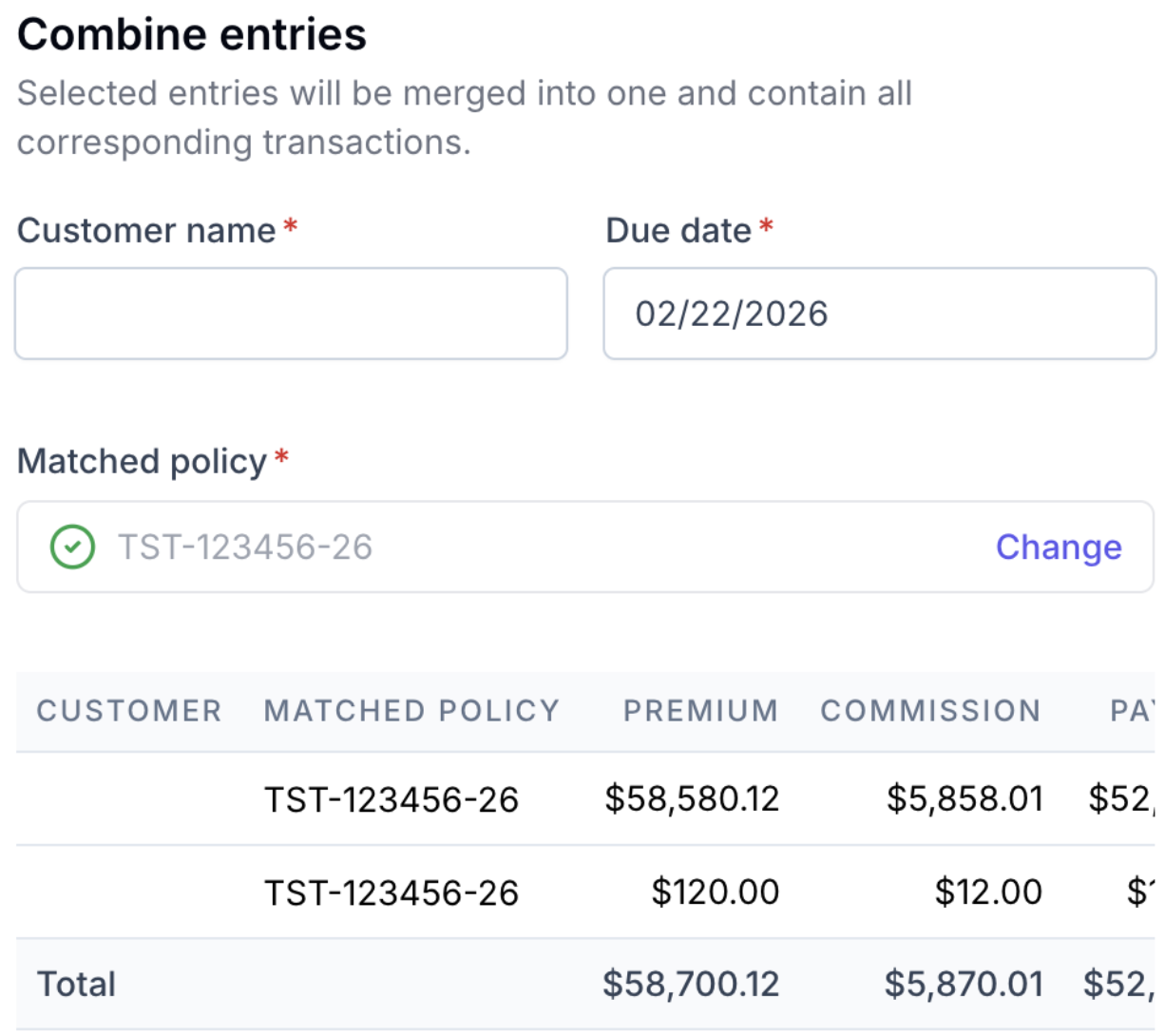
Click Combine entries.

Combined entries are marked with a stacked icon.

Contact Us
Need more help? Contact us at support@useascend.com for more help.