Archive & Unarchive | Documents & Entries
Last updated: July 4, 2026
This is a guide that will teach you how to:
Archive Documents
Archive Entries
Unarchive Entries
Archive Entires in a Consolidated ENtry
Archive Documents
Utilize the Documents View of the Documents Dashboard to delete a document. Locate your document in the table.
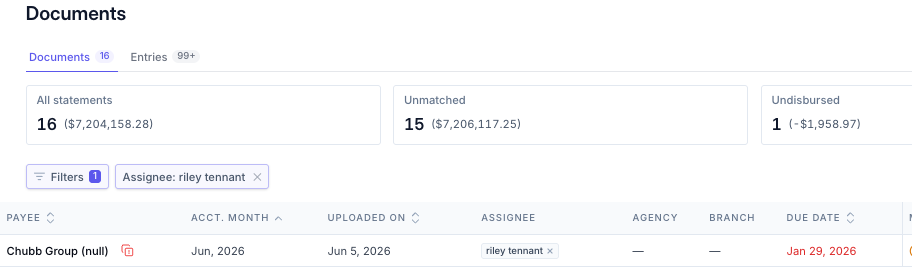
Note - You cannot delete documents with open communications or a disbursement status.
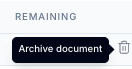
Click the Trash Can icon in the far-right column of the document row to archive the document.
Confirm you want to delete the statement in the pop-up. You cannot undo this action.
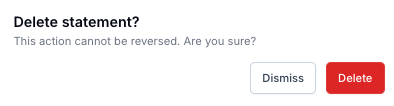
Click Delete.

Archive Entries
From your document details page, select the two horizontal lines icon at the top-right of the details table.
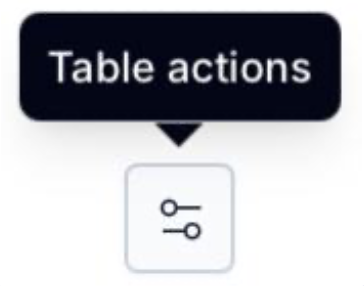
Toggle on Edit Mode.
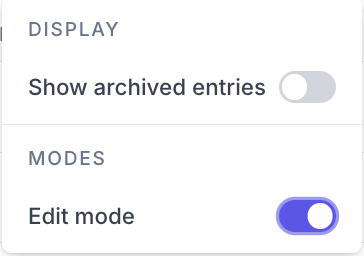
Select the checkboxes next to the entries you want to archive.

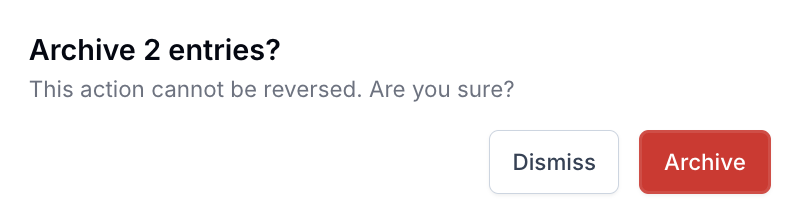
Select Archive at the top right of the table.

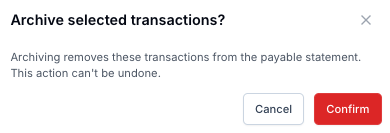
Click Confirm in the pop-up.

Unarchive Entries
From your document details page, select the two horizontal lines icon at the top-right of the details table.
Toggle on Edit Mode and turn on the Show Archived toggle.
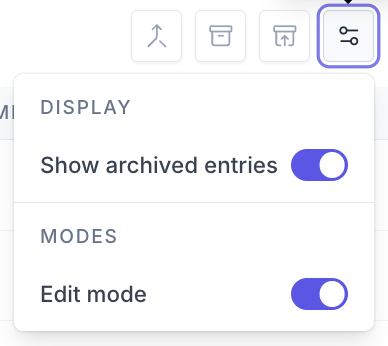
Archived entries will show show as grayed out. Select the checkboxes next to the archived entries you would like to reverse.
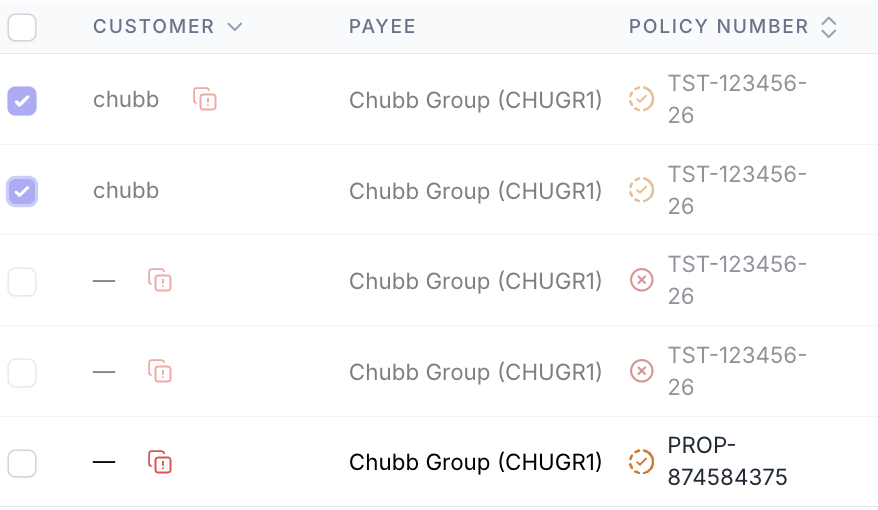
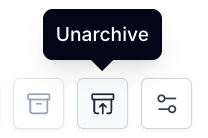
Select Unarchive at the top right of the table.
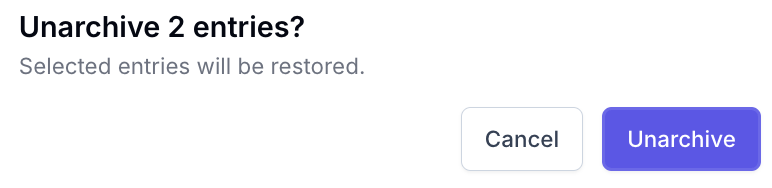
Click Confirm in the pop-up.
Archive Entries in a Consolidated Entry
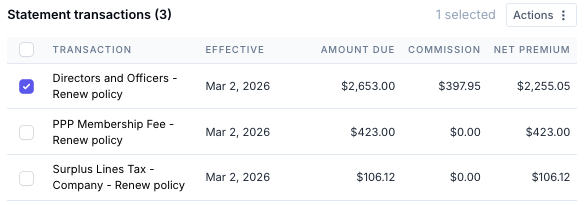
From the Matching Drawer use the checkboxes to select the transaction(s) you would like to archive under Statement transactions.
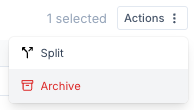
Click Actions and select Archive.
Click Confirm to remove the selected transaction from the consolidated entry.
Contact Us
Need more help? Contact us at support@useascend.com for more help.